Window treatment: one click to put every window back

@wintaru · Oct 23, 2026 · 7 min read
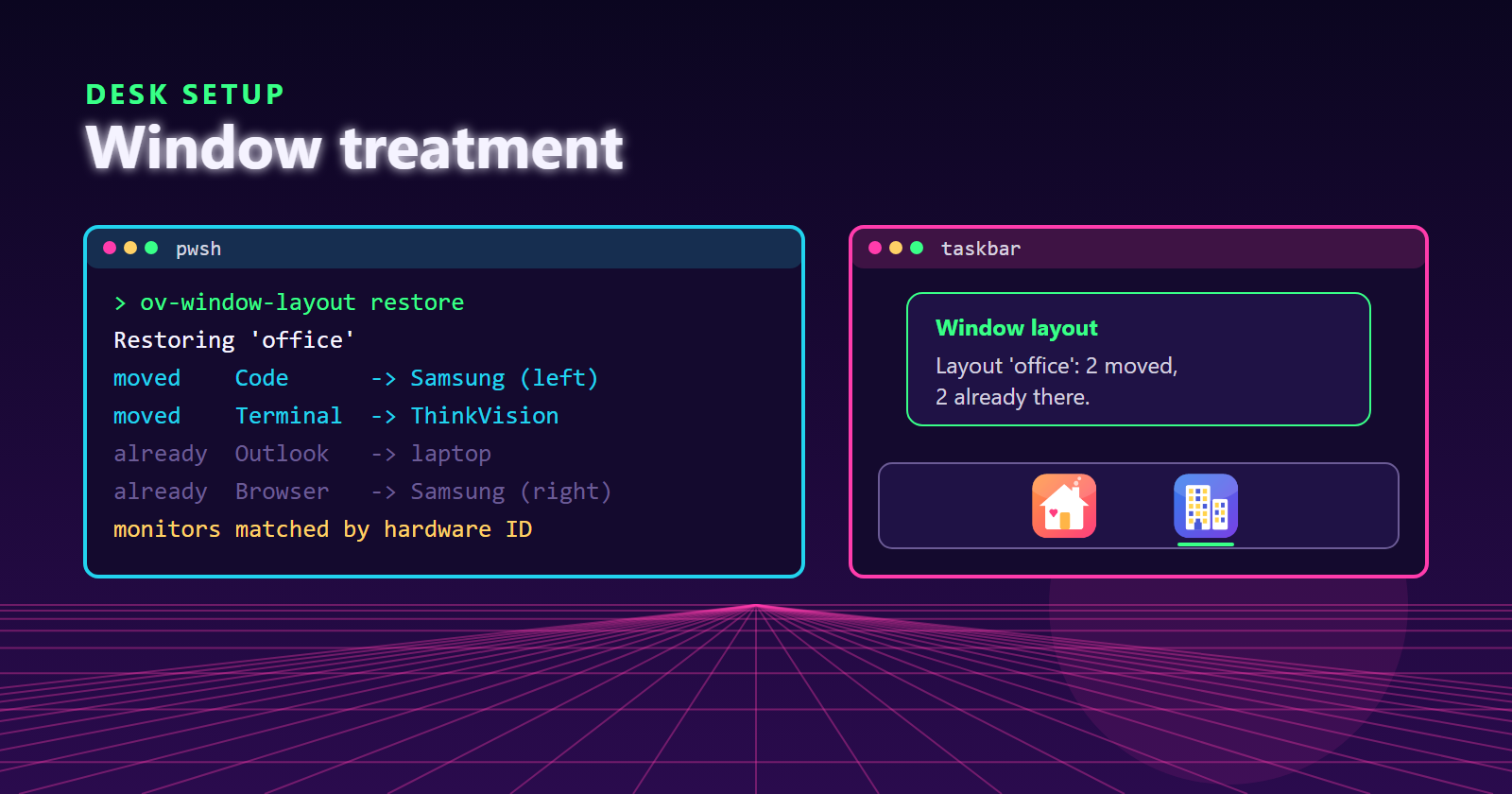
I paid for a full DisplayFusion license to keep my windows on the right monitors, and I regret spending the money. It's very old software and it looks and feels like it, it's finicky to use, and it just doesn't work. So I had my buddy Claude build a PowerShell script that does the job instead. Now there are two buttons on my taskbar, a little house and an office building, and one click puts every window back where I like it for that desk.


The scripts are in a gist if you want them: ov-window-layout on GitHub
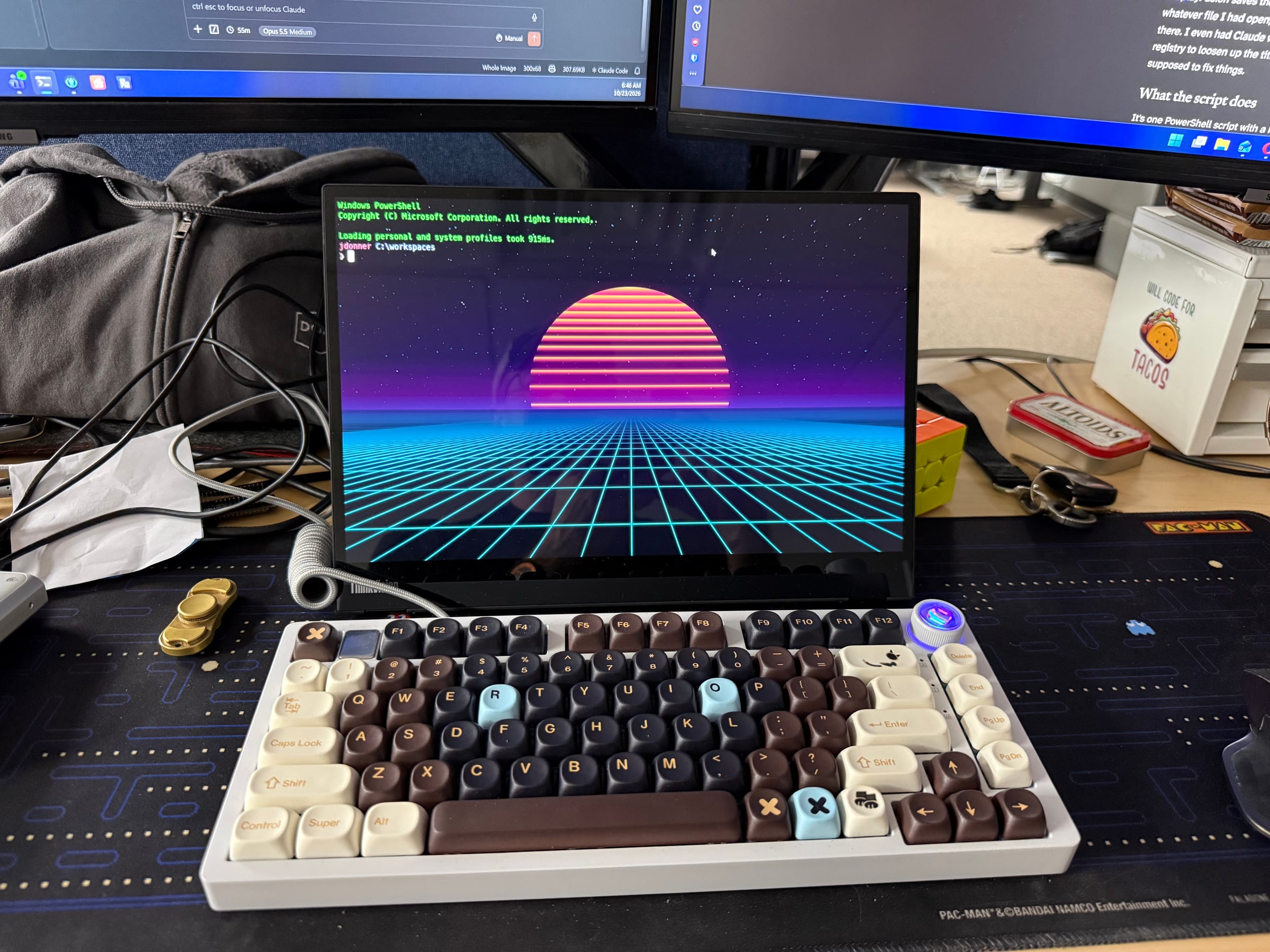
At the office I've got four screens: the laptop, two Samsung monitors, and a Lenovo ThinkVision M14t Gen 2. The terminal gets the Lenovo because it sits front and center right in front of my keyboard, and it's where I launch a lot of stuff and prefer to work out of when I can. At home it's the laptop plus one monitor, with a different arrangement. Every time I dock, Windows piles things wherever it feels like.
Why DisplayFusion kept missing
DisplayFusion saves the exact title of every window. For VS Code that title includes whatever file I had open, so the next morning nothing matches and the window just sits there. I even had Claude write a script that edited DisplayFusion's saved profiles in the registry to loosen up the titles. At some point you have to stop fixing the thing that's supposed to fix things.
What the script does
It's one PowerShell script with a handful of commands:
ov-window-layout save office
ov-window-layout restore
ov-window-layout restore -WhatIf
ov-window-layout help
save writes down every open window: the app, its title, which monitor it's on, where it sits on that monitor, and if it's maximized. restore looks at which monitors are plugged in right now, picks the saved layout that matches, and moves everything (-WhatIf shows what would move without moving anything). help prints a little man page, because future me won't remember any of this.
The monitor part was the interesting bit. Windows calls them Display 1, 2, 3, and those numbers shuffle after a dock or a sleep. Every monitor also hands the computer a little blob of info about itself (called EDID: maker, model, serial number), so the plan was to use that. Turns out my two Samsungs report the exact same serial number (H1AK500000, which looks a lot like a placeholder somebody forgot about), and the laptop screen says its serial is 0. So the script uses the model plus the port Windows sees the monitor on, and if the port changes, it pairs same-model monitors left to right.
Windows get matched by app first, then by exact title, then by the first part of the title (I have VS Code put the folder name first, so that part stays the same), then any leftover spot for that app. Apps that aren't in the layout get left alone. Positions are saved as a fraction of the screen instead of pixels, so a resolution change doesn't throw it off.
The taskbar buttons
ov-window-layout shortcut office makes a Start menu shortcut, and from there it's right-click, Pin to taskbar. Two small problems came up. My terminal ignores the "start hidden" option, so a console window would flash up on every click. The fix is running it through conhost with --headless, the old Windows console, which can run a script with no window at all. Second, both shortcuts launch the same program, so Windows wanted to merge them into one taskbar button. Giving each shortcut its own app ID keeps them separate. A small popup shows what moved for 4 seconds and then goes away.
A couple of things changed after a few days of using it. My terminal runs as administrator, and Windows won't let a normal program move an admin window, so the office layout kept saying "did not move" for the one window I care about most. Now the shortcuts run as administrator too, so Windows asks for approval on every click. Claude looked at using a scheduled task to skip the prompt, but then anything running as me could edit the script and get admin for free, so the prompt stays. The other change: if you click the button for a desk that doesn't have a saved layout yet, it asks if you want to save the windows where they are right now under that name. So setting up a new desk is arrange everything once, click the button, say yes.
Claude drew the icons with code: an orange house with a heart window and smoke out of the chimney, and blue office towers with some of the lights on. They're great for what I asked for. With very little prompting it came up with something usable and distinct that still gets the meaning across. They won't win any awards for looks though, and people who are into theming their desktops would hate them, but I don't care. I might swap in new ones if I see something I like, not a big deal. The icon generator is in the gist too.
It only moves windows that are already open (it doesn't start apps), and --headless isn't something Microsoft documents, so a Windows update could break it someday. For now, one click and my desk is back. No more window pains.
One for my wife's work laptop
My wife wanted the same thing for her work laptop, for all the same reasons I did. The catch is her laptop is locked down and she can't run anything as admin, so Claude and I built her a version of her own (anything for my favorite person 🙂). It's in the same gist: WindowPositions on GitHub
Instead of commands and a button per desk, you double-click it and it asks what you want to do. The first time, it has you name where your windows are right now and saves that. After that you get a little menu: restore a saved position, save a new one, update one, delete one, or put a shortcut on the desktop. If one of your saved positions fits the monitors you have plugged in, pressing Enter picks it.
That makes it probably the better pick if you'd rather have one thing to click. Mine is great when you know exactly which desk you're at and want zero questions, but it's a pile of commands and two taskbar buttons. Hers is one icon that asks, and that's all you have to remember.

A few things change when you can't be admin. Everything saves to your own AppData folder, which you can always write to. It comes with a tiny .cmd file that starts PowerShell with -ExecutionPolicy Bypass, which only counts for that one run and doesn't need admin (double-clicking a .ps1 just opens it in Notepad anyway). It's written for Windows PowerShell 5.1, the one built into Windows, since a work laptop probably doesn't have PowerShell 7. And it can't move a window that's running as admin, which doesn't matter much when you can't run anything as admin.
Claude drew her icon in code too, a teal tile with three windows on it. The script draws it itself when you make the shortcut, so it's still just two files.
To get it to her, I'm emailing it to her work address with .txt on the end of both files, and she'll rename them back (with file extensions turned on in File Explorer, since Windows hides them). We're checking with her IT folks first though, because a surprise script on a work laptop is a great way to make friends in IT.
Last changed by an assistant for @wintaru
0 comments